
The AI Agent Icon Explained: What It Means and How to Use It in Your Workflows
You're three tabs deep into a no-code platform comparison, the same family of glyphs keeps showing up — a hexagonal robot face on one site, a brain stitched from circuit lines on the next, four dots connected by a pulsing arc on the third — and nobody has bothered to tell you what any of them are supposed to mean. Yet you're being asked to choose between platforms whose entire value proposition is compressed into that 24×24 pixel square in the corner of a card.
Here's the premise of the next 4,000 words: an ai agent icon is functional shorthand for what the underlying tool will do for you — its autonomy level, its multi-step capability, the type of file or message it hands back — and reading those icons fluently is the difference between buying tools you'll never use and recognizing the one that already does what you need.
The stakes are real. According to the Nielsen Norman Group, abstract icons without labels routinely score recognition rates below 50%. Half of users walk away with the wrong mental model before they ever click "Start Free Trial."
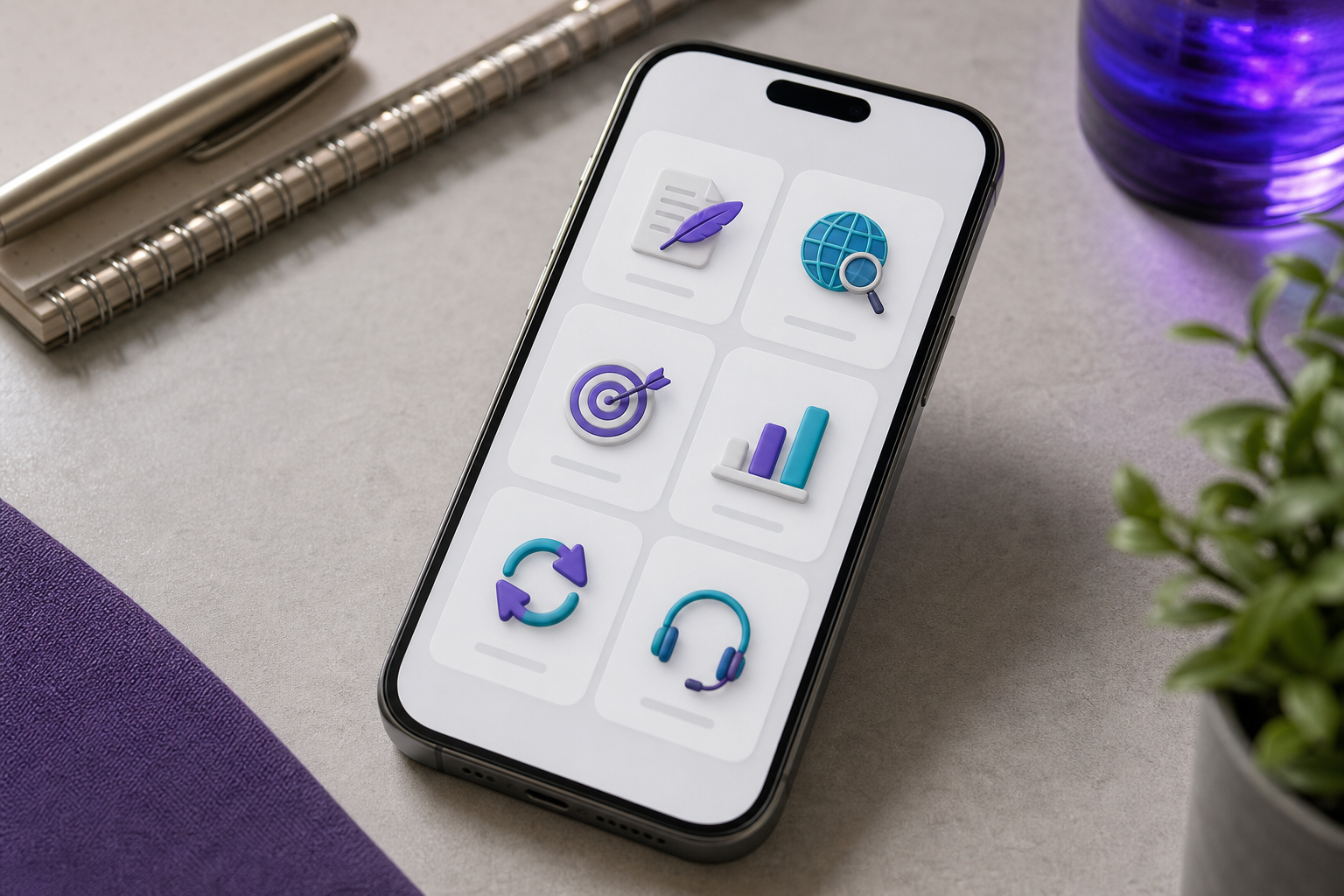
Table of Contents
- Why the AI Agent Icon Carries More Information Than You Think
- The Four Visual Archetypes You'll Encounter Across Agent Platforms
- How Specialist Agent Icons Signal What a Tool Will Actually Do for You
- Reading Agent Icons Inside Workflow Builders to Sequence Tasks Correctly
- When a Platform's Icon Design Should Be a Red Flag Before You Commit
- Customizing and Deploying Agent Icons in Your Own Team's Workflow System
- Your 10-Point Agent Icon Audit Before You Commit to Any Platform
- FAQ
Why the AI Agent Icon Carries More Information Than You Think
Two visual categories get confused constantly, and the confusion costs you real money. A static AI tool logo — ChatGPT's knot, Claude's starburst, Gemini's gem — is brand identity. It says "this product exists." An ai agent icon, by contrast, lives inside a working interface and serves a different job entirely. It says "this thing will execute a task for you." One is a billboard. The other is a contract.
Don Norman's Design of Everyday Things draws the distinction that explains why this matters: an affordance is what an object can do, while a signifier is the visual cue communicating that possibility. Apply that directly to the dashboards you've been scrolling. An agent icon featuring a closed loop of arrows is signifying autonomy and cyclical execution — "this thing runs in stages, not once." A specialist badge with a pen nib or magnifying glass is signifying deliverable type — "this thing produces a specific artifact." The icon is doing the same work a job title does on a business card.
Four design elements show up over and over, each attempting to communicate something specific:
- Looping arrows or process rings signal multi-step execution. Rasa frames agents precisely as multi-step orchestrators that interpret intent and take action across stages — and the loop icon is the visual hook for that idea.
- Interconnected nodes signal context-awareness and tool-stitching. LlamaIndex describes its vibe-coding agents as context-aware systems that pull from live data sources, and the constellation motif maps directly onto that.
- Humanoid faces or chat heads signal conversation and persona — the agent is being positioned as a teammate you talk to rather than a process you trigger.
- Role badges (pen, chart, envelope, target) signal deliverable type. The icon is telling you what file or artifact lands on your desk when the work finishes.
If you're looking for a deeper visual guide to agent icons, the patterns get richer the more platforms you sample — but the four signals above explain perhaps 90% of what you'll see in the wild. For a more systematic tour of those patterns across products, the visual guide to recognizing modern AI assistants maps them tool by tool.
None of this is decoration, and none of it is accidental. There is no AI-specific icon specification anywhere. Platforms borrow from Google's Material Design, which standardizes a 24×24 dp grid, consistent stroke weights, and reused metaphors. They borrow from BPMN 2.0, the Object Management Group's workflow notation, which assigns circles to events, rounded rectangles to tasks, and diamonds to decisions. Every icon you encounter is a design team's interpretation of those unwritten conventions, filtered through their own product worldview. Reading the choices tells you how the team thinks about their own work.
The McKinsey 2023 global survey on generative AI found that about 40% of organizations had embedded genAI into at least one business function, and those functions almost always live behind icons in a dashboard. When the icon misleads, the workflow underneath gets misused — and the productivity gain that drove the purchase decision quietly evaporates.
An ai agent icon is not branding noise. It is a 24-pixel contract telling you what the tool will hand back to you when the work is done.
The Four Visual Archetypes You'll Encounter Across Agent Platforms
Across the platforms most people will evaluate — Lindy, Relevance AI, MindStudio, Relay, Zapier, GitHub Copilot's agent mode, and the rest — virtually every agent icon you see resolves to one of four archetypes. Learn them once and you'll decode any new platform in roughly five seconds.
- The Neural Node. Interconnected dots, lines, or constellation shapes. Signals context-awareness and tool-stitching: the agent pulls from multiple data sources and chains them. LlamaIndex's vibe-coding agents are the canonical example. When you see this archetype, expect configuration overhead — the agent needs to "know about" your data before it produces anything useful.
- The Autonomous Bot. A humanoid face, a friendly mechanical head, or a chat bubble with eyes. Signals conversation and persona — the agent is positioned as a teammate you talk to. Common on customer support tools, voice assistants, and consumer chatbots. Carries a known risk per HCI research: anthropomorphic icons can drive over-trust, with users assuming the agent has judgment it doesn't actually have. Nielsen Norman Group's broader icon work reinforces how easily users misinterpret these signals.
- The Workflow Loop. Circular arrows, process rings, or an infinity-style cycle. Signals multi-step execution and autonomy: the agent runs through stages on its own. This is GitHub Copilot's agent mode representation and the dominant shape on no-code workflow builders. When you see it, expect the agent to do more than one thing per trigger — and expect to need to inspect what each step actually does.
- The Specialist Badge. A role-specific object: pen nib for writing, magnifying glass for research, envelope for outreach, bar chart for reporting, target for prospecting. Signals deliverable type — this agent produces this specific output. The six-agent roster behind VibeCody uses this archetype directly. When you see Specialist Badges, the platform has decided clarity beats novelty.
Most real-world icons mix two archetypes — a Neural Node containing a Specialist Badge, a Workflow Loop wrapped around a Bot face — and the combination is often the most useful signal of what the tool will actually do.

How Specialist Agent Icons Signal What a Tool Will Actually Do for You
Archetype recognition is step one. Step two is matching the icon's promise against what the agent actually returns — because the gap between the two is where buyer's remorse lives.
| Agent | Icon Archetype | Capability Signaled | Actual Output Delivered |
|---|---|---|---|
| Blog Writer (VibeCody) | Specialist Badge (pen) | Long-form writing | Markdown post to repo |
| Web Scraper | Specialist Badge (magnifier) | Data extraction | CSV file to repo |
| Lead Hunter | Specialist Badge (target) | Prospecting | Lead CSV to repo |
| Report Builder | Specialist Badge (chart) | Analytics output | Structured report file |
| Zapier AI Actions | Workflow Loop + bolt | Multi-app automation | Triggered cross-app actions |
| Lindy agent | Autonomous Bot (face) | Conversational task handling | Chat-based execution log |
| Relevance AI agent | Neural Node | Tool-stitching, custom flows | Configurable workflow output |
| GitHub Copilot (agent mode) | Workflow Loop + node | Multi-file code edits | File diffs in IDE |
Walk through the icon-capability gap one archetype at a time and the pattern is clear. Specialist Badge icons tend to under-promise visually and over-deliver on clarity — you know before you click that the Blog Writer hands back a Markdown file and the Lead Hunter hands back a CSV. Autonomous Bot icons over-promise on personality and under-clarify on output format; the friendly face tells you nothing about whether you receive a file, a chat log, or a triggered action. Workflow Loop icons accurately signal multi-step behavior but say nothing about deliverable, which is why people build Zaps for weeks without a clear final artifact in mind. Neural Node icons signal flexibility, which is honest — but the flip side is the icon is also saying "you'll need to configure this before it does anything specific."
Retool's framing of vibe coding as "programming by conversation rather than code" reinforces why Specialist Badge thinking maps to the strongest mental model. You ask for a specific thing; you receive a specific thing. The icon is not lying to you about what the work session will produce. This is also why agentic AI coding tools that show distinct node glyphs per task type tend to earn more developer trust than ones using a single hero-bot image across every feature.
Reading Agent Icons Inside Workflow Builders to Sequence Tasks Correctly
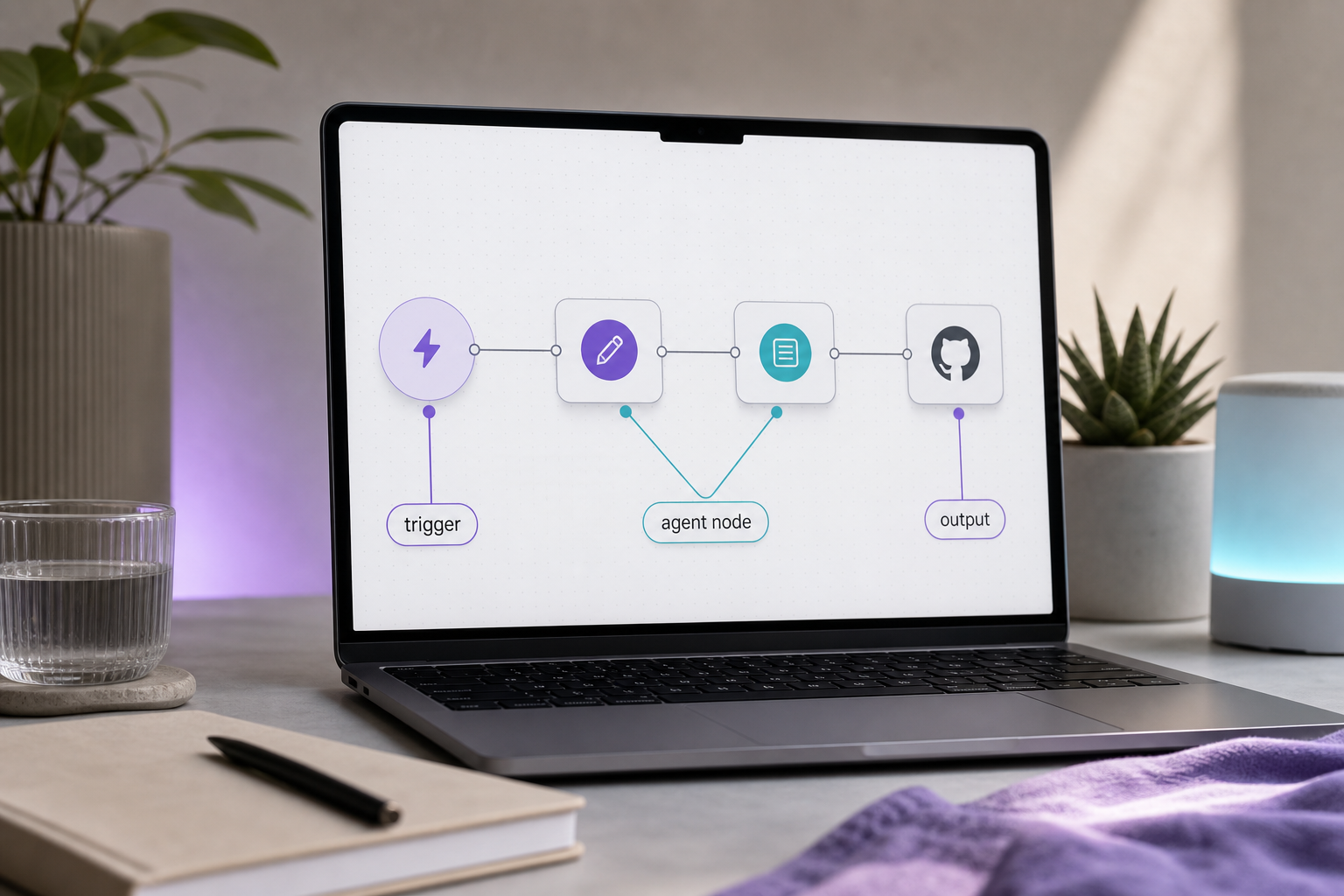
The moment you open a no-code workflow canvas — Zapier Canvas, Relay, Lindy, n8n, Make — the icons stop being decorative and start being grammatical. Each icon represents a node with inputs and outputs, and reading them in sequence is how you avoid building flows that look right but execute wrong. Many of these builders implicitly borrow from the BPMN 2.0 visual vocabulary without saying so: circles for events and triggers, rounded rectangles for tasks and agents, diamonds for decisions.
Here are six steps to read any canvas:
- Identify the trigger icon first. Look for a circle, lightning bolt, or "play" glyph at the leftmost or topmost node. This tells you what starts the workflow. If you can't find one in under five seconds, the platform's icon language is failing you — flag it before you build anything serious.
- Trace connectors, not just nodes. Arrows indicate data flow direction; dashed lines often indicate optional or conditional paths. Solid arrows pass data unconditionally; dashed arrows are gated on a condition above them. This matches BPMN's standard convention.
- Distinguish agent nodes from action nodes. Agent nodes — the ones doing reasoning — usually carry a Workflow Loop, Neural Node, or named badge. Action nodes (send email, write to sheet) carry their target app's logo. Confusing the two leads people to expect reasoning from a dumb action step, which silently breaks the flow.
- Look for state indicators on agent icons. A small badge in the corner — clock, pause, checkmark — usually indicates the node has memory, scheduling, or completion logic. GitHub's Copilot agent mode encodes this distinction explicitly: agent requests are visually first-class, not styled as plain completions.
- Find the output icon at the end. A platform with mature icon design always terminates a workflow with a clear output node — a file icon, a destination logo (GitHub, Slack, email), or a deliverable badge. If the canvas ends in another agent node with no terminal artifact, the platform has not finished thinking about what you receive.
- Read the whole sequence as a sentence. Left to right or top to bottom: "When [trigger] happens → [agent] does [task] → result goes to [output]." If you can't narrate that sentence from icons alone, the workflow will be hard to maintain six weeks from now when you've forgotten what you built.
When a Platform's Icon Design Should Be a Red Flag Before You Commit
Icon design quality is a remarkably reliable proxy for product maturity. Icons sit at the intersection of design discipline, product clarity, and engineering specificity — three things that are hard to fake at the pixel level. Sloppy icons usually mean sloppy thinking somewhere upstream. Four red flags, in order of severity:
Red flag #1: Identical icons across a roster of "different" agents. If a platform's Sales Agent, Writer Agent, Research Agent, and Support Agent all share the same hexagonal-brain motif with a different accent color, that's a tell. The agents are almost certainly the same underlying LLM call with a different system prompt and a different name — not distinct specialist tooling with task-appropriate scaffolding. Compare against a Specialist Badge approach where each agent has a visually distinct role icon tied to a distinct output format, and the difference in product thinking shows up before you ever read a feature list.
A platform that reuses the same icon for five different specialists is telling you something important about how differently it thinks about each one — which is to say, not very differently at all.
Red flag #2: Loop icons on one-shot tools. Some platforms slap circular-arrow motifs on agents that genuinely run only once per trigger. This is exactly the signifier-affordance mismatch Don Norman warns about. The icon promises autonomy and iteration; the tool delivers a single response. Users build the wrong mental model and either underuse the agent (assuming it's complicated to set up) or misuse it (expecting it to handle ongoing state it never had). Retool itself openly asks "Can you really vibe code an AI agent?" and concedes that guardrails and human review remain necessary even when the agent does most of the implementation — an honesty most marketing visuals don't bother with.
Red flag #3: Missing output icons. Open the platform's marketing screenshots and count how many show a clear output destination — file, repo, email, database, dashboard. If most workflow examples end on an agent node with no terminal artifact visible, the platform hasn't yet decided what you actually receive at the end of a run. This is one of the strongest tells that the product is still in "demo mode" rather than "deployed mode." Workflows without output icons are stage props, not production tools.
Red flag #4: AI-aesthetic noise. The Vibe Coding Life community explicitly calls out "emoji icons, overused blue and purple gradients, and layouts that scream AI generated" as signals of rushed UI rather than sophistication. When every agent icon glows, pulses, or wears a neural-net halo, the design team is selling vibes instead of capability. Pair that critique with the Nielsen Norman finding that abstract icons routinely fall below 50% recognition without labels and the picture sharpens: ornamental icons are doubly bad — decorative and unreadable. If you're shortlisting the best AI coding tools for your team, the ones whose visuals match their actual capability tend to be the ones that survive your second month of use.
One important counterpoint before you go too hard on the red flags: not every minimalist icon set means the product is good either. Some platforms use Apple Human Interface Guidelines–style simplicity as cover for thin functionality — clean, beautiful, empty. The real test is not "is the icon minimal?" It's "does the icon accurately match what the agent does?" An honest, ugly icon beats a beautiful lie every time.
Before you sign up for a platform's trial, scroll their documentation and product screenshots and run the four red flags above. The pattern you find in their icon system is almost always the pattern you'll find in their product.
Customizing and Deploying Agent Icons in Your Own Team's Workflow System
Once you're running multiple agents — whether on a single platform, a stitched-together stack, or a GitHub repo full of agent outputs — your team needs an internal icon and labeling convention. Without one, you'll spend more time hunting for the right agent than running it. Rasa's guidance on building effective agent systems separates intent capture, tool selection, orchestration, memory, and evaluation as distinct phases. Each of those deserves its own visual marker in your team's setup.
A seven-step checklist for designing your own conventions:
- Pick one archetype as your team's default and stick to it. If your agents mostly produce deliverables — posts, CSVs, reports — use Specialist Badge thinking. Pen for writers, magnifier for scrapers, chart for reports, target for prospecting. Don't mix in Autonomous Bot faces unless an agent is genuinely conversational. Consistency beats cleverness.
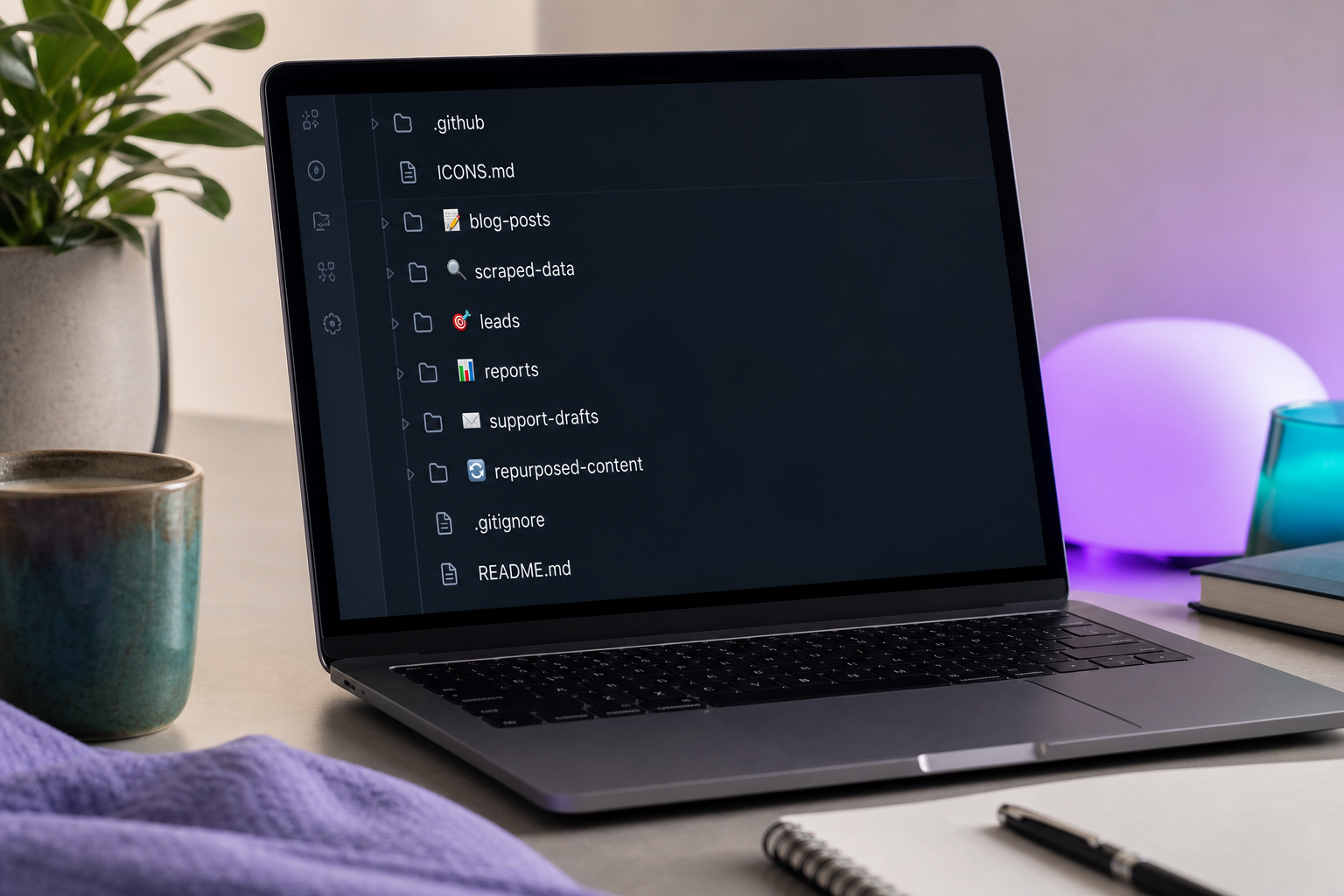
- Use emoji as a low-cost icon layer for file naming. In a GitHub, GitLab, or Bitbucket repo where agent outputs land, prefix folders with consistent emoji: 📝 for blog drafts, 🔍 for scraped data, 🎯 for lead lists, 📊 for reports, ✉️ for support drafts, 🔄 for repurposed content. Emoji render in every interface you'll open the repo in and require zero design work.
- Match repo folder structure to your agent roster one-to-one. Each agent gets one folder; each folder uses the same emoji as the agent's dashboard tile. This creates a visual through-line from "where I run the agent" to "where the output lives." When a teammate joins, the structure teaches itself.
- Add a state suffix to filenames. Use
-draft,-review,-final(or emoji equivalents like 🟡🟢) so the icon system extends into completion status rather than just agent identity. This mirrors how mature workflow builders use state indicators on nodes, and it keeps "what's done" visible without opening files. - Document the convention in a single
ICONS.mdfile at the repo root. Two columns: emoji or icon symbol, and meaning. Anyone joining the team learns the visual grammar in 30 seconds. Anyone leaving doesn't take the knowledge with them. This is the lowest-effort onboarding document you will ever write. - Avoid inventing new icons for one-off agents. If you spin up a temporary agent for a single project, reuse an existing badge with a project tag rather than introducing a new visual. Per Nielsen Norman Group, every new abstract icon you introduce is roughly a coin flip on whether your team will remember what it means in six weeks.
- Audit the system quarterly. Walk the repo, the agent dashboard, and your internal docs. Anywhere the icon-to-meaning link has drifted — an agent whose scope has expanded beyond its original badge, a folder using the wrong emoji because someone was in a hurry — realign it. About 15 minutes per quarter prevents about 15 hours per year of confused message threads.
Your agent roster is only as clear as the system you build around it, and a consistent icon convention is the cheapest org chart you will ever create.
Your 10-Point Agent Icon Audit Before You Commit to Any Platform
Run this list against any ai agent icon system you're evaluating — Lindy, Relevance AI, MindStudio, Relay, Zapier, or whatever launches next month. Five minutes on their screenshots will tell you more than an hour of marketing copy.
- Does each agent in the roster have a visually distinct icon? If not, the agents are likely the same model under different prompts wearing different paint.
- Can you identify the agent's output type from its icon alone? If you can't tell whether you'll receive a file, a message, or a triggered action, the platform hasn't decided either.
- Is the icon archetype consistent across the roster? Mixed archetypes — some Specialist Badges, some Bot faces, some Neural Nodes — without a clear reason signal a bolted-together product rather than a designed one.
- Do workflow canvases show clear trigger, agent, and output icons at distinct stages? Anything less is a recipe for broken flows that pass code review and fail in production.
- Are loop icons used only on agents that actually loop? A loop icon on a one-shot tool is the textbook signifier-affordance mismatch. Treat it as misrepresentation.
- Do icons appear with text labels in primary navigation? Icons paired with labels outperform icons alone on both speed and accuracy in every usability test that's ever been run on the question.
- Is there any anthropomorphic icon on an agent that doesn't actually converse? If yes, the platform may be encouraging over-trust by accident — and you'll see the consequences when someone on your team treats it like a colleague instead of a tool.
- Does the platform's documentation include a key or legend explaining its icon vocabulary? Mature platforms publish this. Immature ones expect you to guess and call it intuition when you guess right.
- When agents are updated, do their icons update too? A platform that ships new capabilities without revisiting visual signifiers is leaving users with stale mental models — the icon you learned six months ago no longer matches what the agent does.
- Can you narrate a complete workflow from icons alone, without reading any node titles? If yes, the icon system is doing real work. If no, you'll spend the next year explaining workflows to your team in text — and the next year after that explaining them again to new hires.
The platforms that pass this audit are the ones whose icons are doing the same job your agents are: taking something complex and handing it back as something specific.
FAQ
Is there a universal standard for AI agent icons, or does every platform invent its own?
There is no AI-specific iconography standard. Platforms borrow from Google's Material Design (24×24 dp grid, consistent metaphors), Apple's Human Interface Guidelines (simple, single-concept icons), and the BPMN 2.0 specification (circles for triggers, rounded rectangles for tasks, diamonds for decisions). That's why the same "circuit brain" can mean very different things on different tools — you're seeing each design team's interpretation of unwritten conventions rather than a shared language.
Can I create custom agent icons inside no-code platforms?
Most no-code agent platforms ship with a fixed icon set tied to their specialist roster — you don't typically redesign the in-app glyphs themselves. What you can (and should) customize is the layer around the agent: folder emoji in your connected GitHub, GitLab, or Bitbucket repo, filename prefixes for outputs, and internal documentation labels. That's where your team's visual conventions live, and it's the more durable layer anyway. The platform redesigns its icons every couple of years; your folder structure outlasts that.
What's the difference between an ai agent icon and a bot icon in a tool like Zapier?
A bot icon usually signals a single conversational endpoint — you send a message, it answers. An ai agent icon signals multi-step execution: the thing behind the icon will plan, call tools, and produce an output without you nudging every step. GitHub's Copilot agent mode demonstrates this distinction visually — agent requests are treated as first-class entities, separate from plain chat completions, with their own iconography and behavior in the IDE.
Do agent icons affect SEO or app store discoverability for platforms built on top of these tools?
Indirectly. Icons themselves aren't an SEO ranking factor, but icon clarity drives click-through rates in app stores and listicles, which feeds engagement signals. More importantly, icons that accurately telegraph capability reduce bounce — users who understand what your agent does from the icon are likelier to stay through onboarding. Unclear icons cost you users before SEO ever enters the picture, which makes icon design a roughly free distribution lever most teams under-invest in.